Do it 자바 교재로 안드로이드 스튜디오 학습을 진행하며
예제를 따라해보고 있다.
간단하게 화면을 출력하는 두 가지 방법을 정리해보겠다.
1. 액티비티 코드로 화면 구성하기
class MainActivity : AppCompatActivity() {
    override fun onCreate(savedInstanceState: Bundle?) {
        super.onCreate(savedInstanceState)

        val name = TextView(this).apply {
            typeface = Typeface.DEFAULT_BOLD
            text=  "Lake Louise"
        }

        val image = ImageView(this).also {
            it.setImageDrawable(ContextCompat.getDrawable(this, R.drawable.apps))
        }

        val address = TextView(this).apply {
            typeface = Typeface.DEFAULT_BOLD
            text = "AB , 캐나다"
        }
        val layout = LinearLayout(this).apply {
            orientation = LinearLayout.VERTICAL
            gravity = Gravity.CENTER
            addView(name, LinearLayout.LayoutParams.WRAP_CONTENT,LinearLayout.LayoutParams.WRAP_CONTENT)
            addView(image, LinearLayout.LayoutParams.WRAP_CONTENT,LinearLayout.LayoutParams.WRAP_CONTENT)
            addView(address, LinearLayout.LayoutParams.WRAP_CONTENT,LinearLayout.LayoutParams.WRAP_CONTENT)
        }

        setContentView(layout)
    }
}
교재에는 addView 두 번째 매개변수(파라미터) 로 WRAP_CONTENT 를 보내지만
업데이트가 되면서 바뀐건지..
LinearLayout.LayoutParams.WRAP_CONTENT라고 써야 한다.
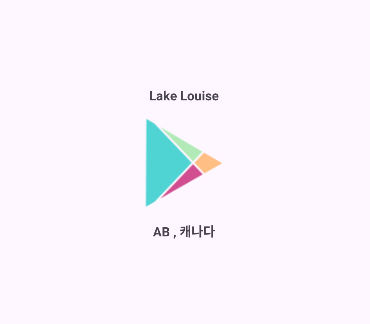
결과물이다.
2. 레이아웃 xml 로 화면 구성하기
<LinearLayout xmlns:android="http://schemas.android.com/apk/res/android"
    xmlns:app="http://schemas.android.com/apk/res-auto"
    xmlns:tools="http://schemas.android.com/tools"
    android:id="@+id/main"
    android:layout_width="match_parent"
    android:layout_height="match_parent"
    tools:context=".MainActivity">

    <TextView
        android:layout_width="wrap_content"
        android:layout_height="wrap_content"
        android:text="Hello World!"
        app:layout_constraintBottom_toBottomOf="parent"
        app:layout_constraintEnd_toEndOf="parent"
        app:layout_constraintStart_toStartOf="parent"
        app:layout_constraintTop_toTopOf="parent" />

</LinearLayout>
따로 코드 작성은 추가하지 않았고 기본 값 ㅎㅎ
xml 은 이런 식~~~~
'앱 개발 > Andriod Studio' 카테고리의 다른 글
| [Android Studio] 가로 방향 화면 구성하기 (0) | 2026.01.19 |
|---|---|
| [Android Studio] 안드로이드 스튜디오 모듈 삭제하는 방법 (0) | 2026.01.19 |
| [Android Studio] Compose 사용해보기 (0) | 2026.01.13 |
| [Android Studio] 단축키 & (Ctrl + Shift + Space) (0) | 2026.01.12 |
| [Android Studio] 인터넷 연결하기 (view Binding) (0) | 2026.01.12 |